This guide provides a detailed, step-by-step process for installing and running MDriven Server and MDriven Turnkey directly on macOS. This native setup leverages the .NET runtime, eliminating the need for a separate web server, such as Apache.
Prerequisites
Before you begin, ensure you have the following installed:
- MacOS (In this guide, we used Ventur, but anything later than this is recommended)
- MDriven Docker zipped files(MDriven Server and Turnkey Dockerfiles)
Step 1: Install Homebrew
Homebrew is a package manager that simplifies the installation of necessary tools on macOS.
- Open Terminal and run the following command to install Homebrew:
Bash
/bin/bash -c “$(curl -fsSL https://raw.githubusercontent.com/Homebrew/install/HEAD/install.sh)” - Verify the installation:
Bash
brew –version
Step 2: Download Zip File(MDriven Server and Turnkey Docker Files)
Download the MDriven Server and Turnkey package from our official GitHub/Docker page, extract the files, and prepare them to run.
- Download and Unzip the latest MDriven Server and turnkey zip package into your preferred directory:
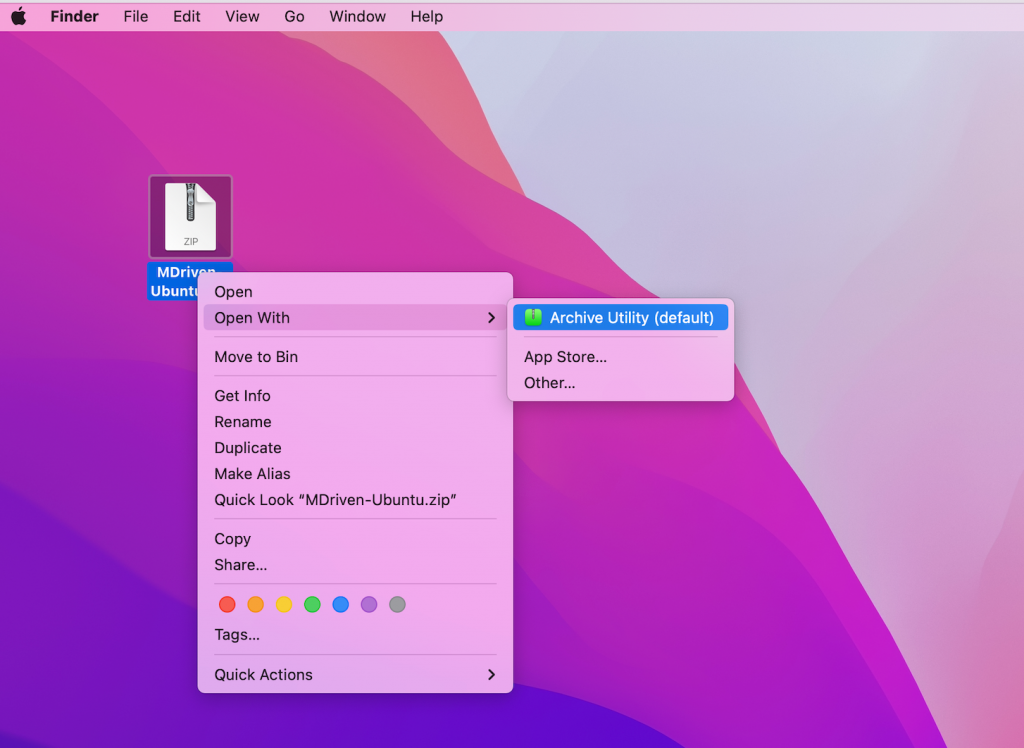

Navigate to the Extracted Folder, and let’s take a look at the contents

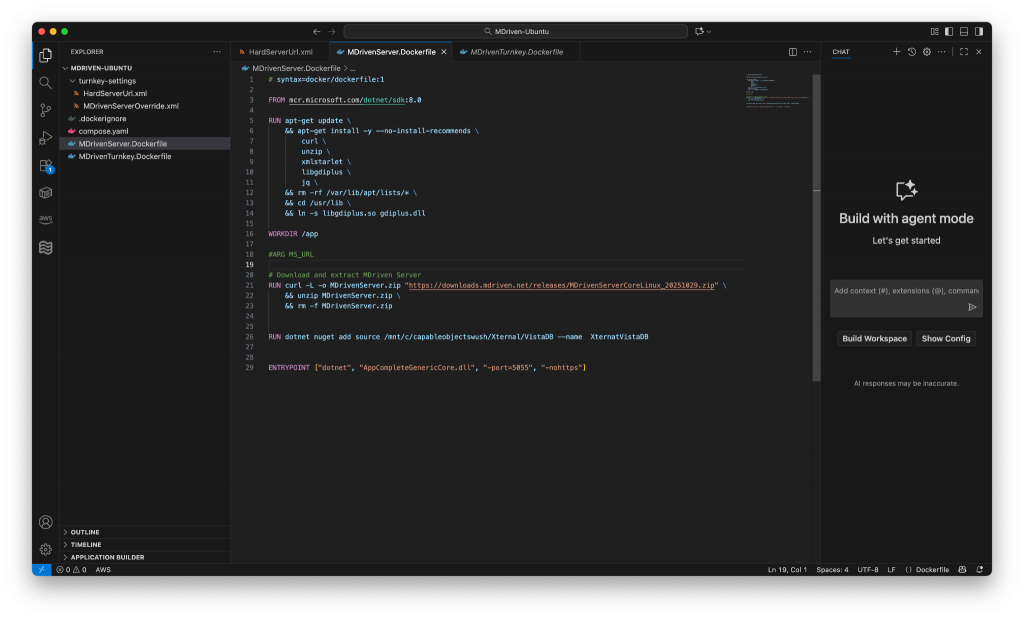
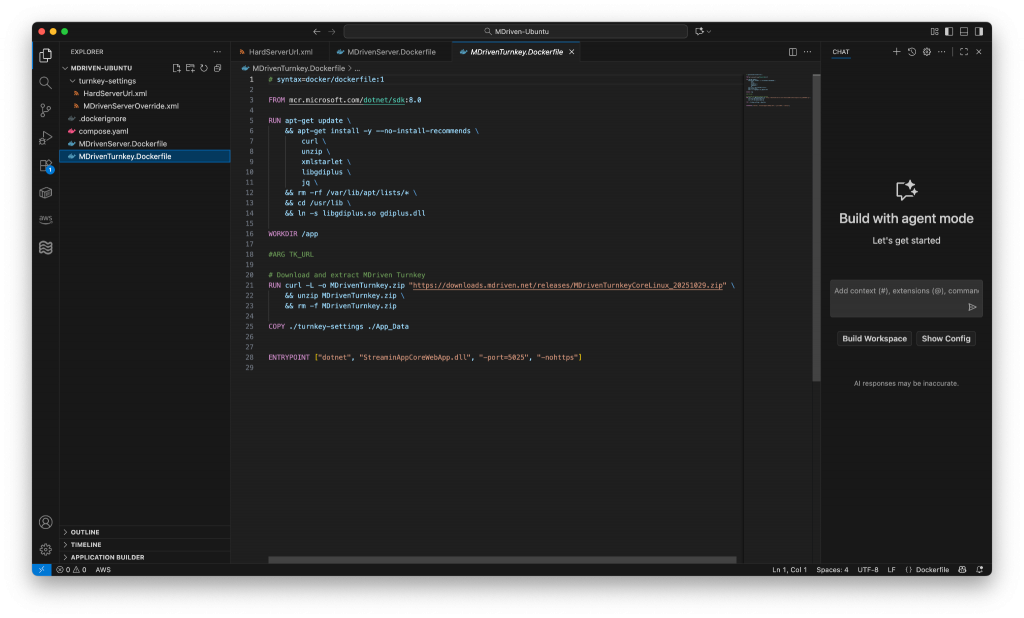
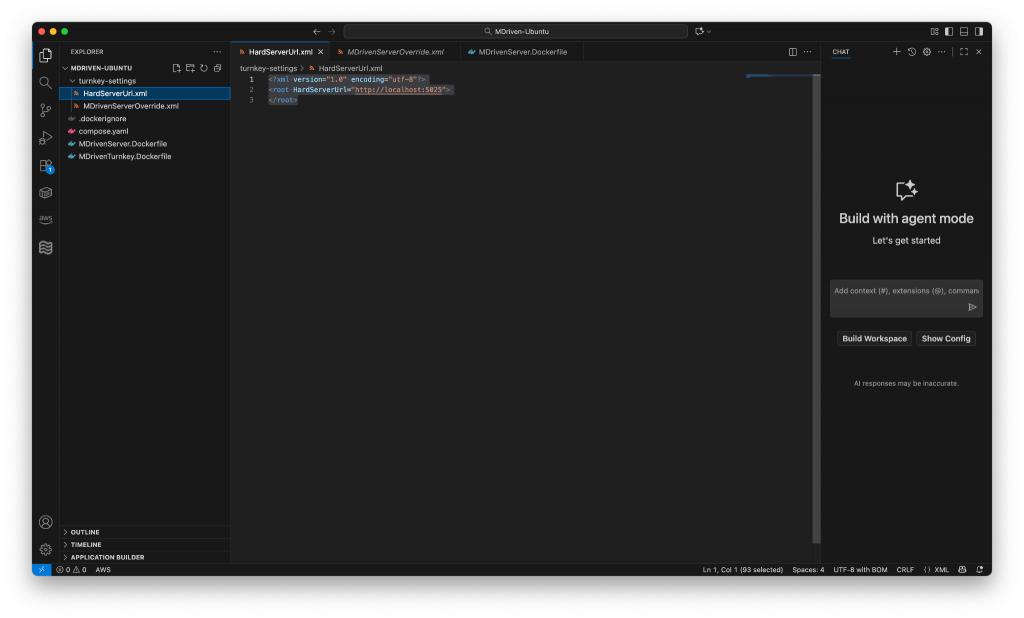
Open Your Preferred Text Editor – I used Visual Studio Code Editor in this Illustration – It’s my preferred Option. Then navigate to the MDriven-Ubuntu Extracted folder to view its contents in detail as shown below.
MDriven Server Dockerfile
MDriven Turnkey Dockerfile
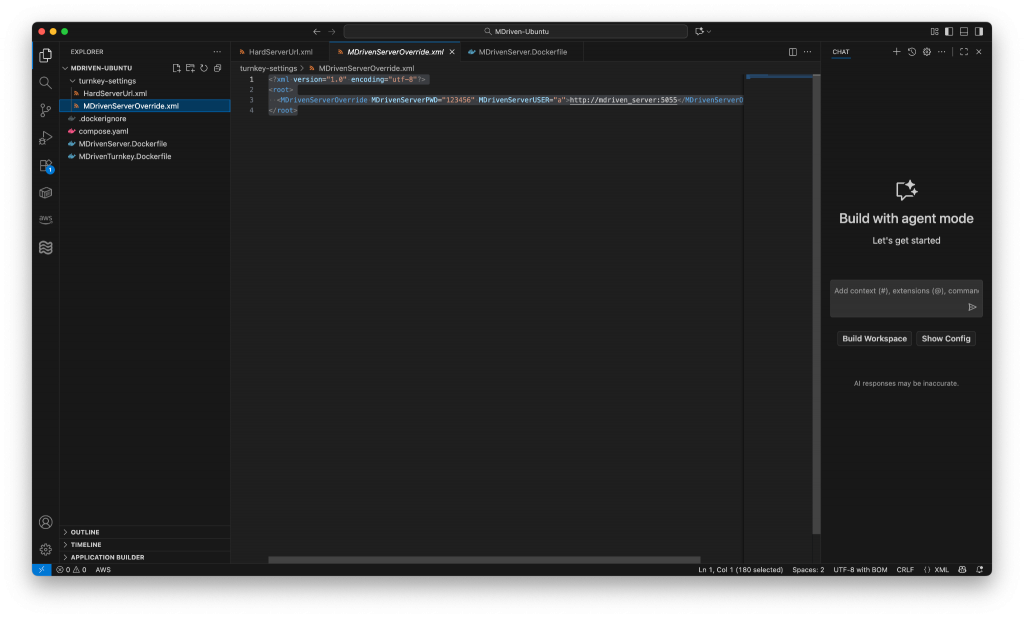
Turnkey-settings Folder Contents
HardServerUrl.xml
MDrivenServerUrl.xml
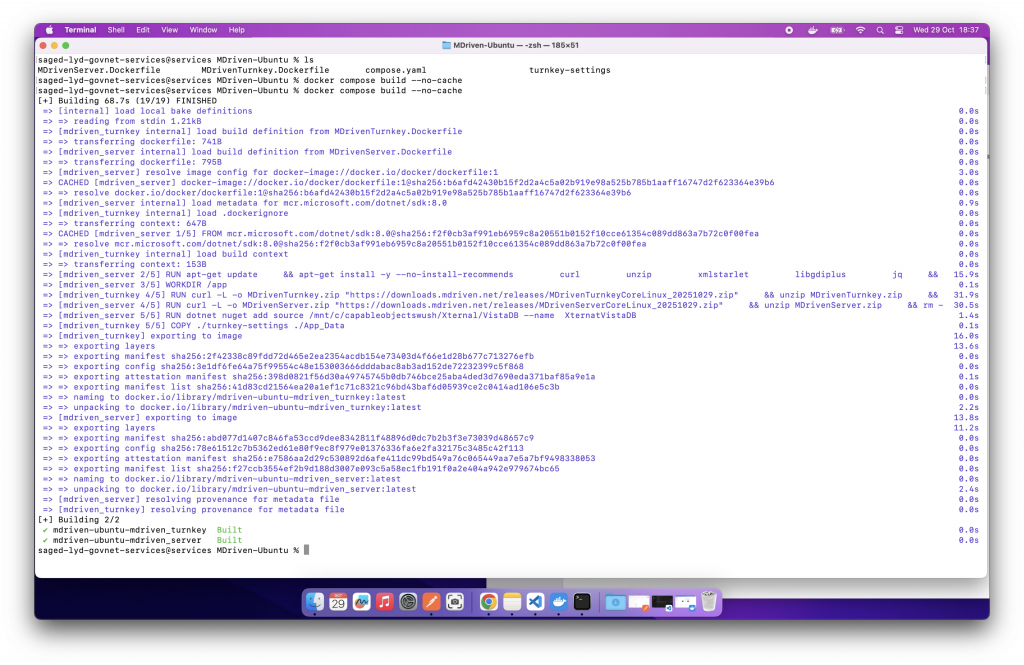
Open Terminal
Ensure Docker rebuilds all images from scratch, ignoring any cached layers – run the command below.
$ docker compose build –no-cache
Now start all services in the background (detached mode) using our compose file with this command.
$ docker compose up -d

Open the Docker Application
If you don’t have it installed already, follow the guide link attached – (it’s not covered in this specific write-up)

Step 3: Verify Installation and Access
With both servers running, you can verify access via your web browser or using curl.
| Application | URL | Verification Command |
| MDriven Server | http://localhost:5055 | curl -vk http://localhost:5055 |
| MDriven Turnkey | http://localhost:5025 | curl -vk http://localhost:5025 |
MDriven server when it has successfully started.
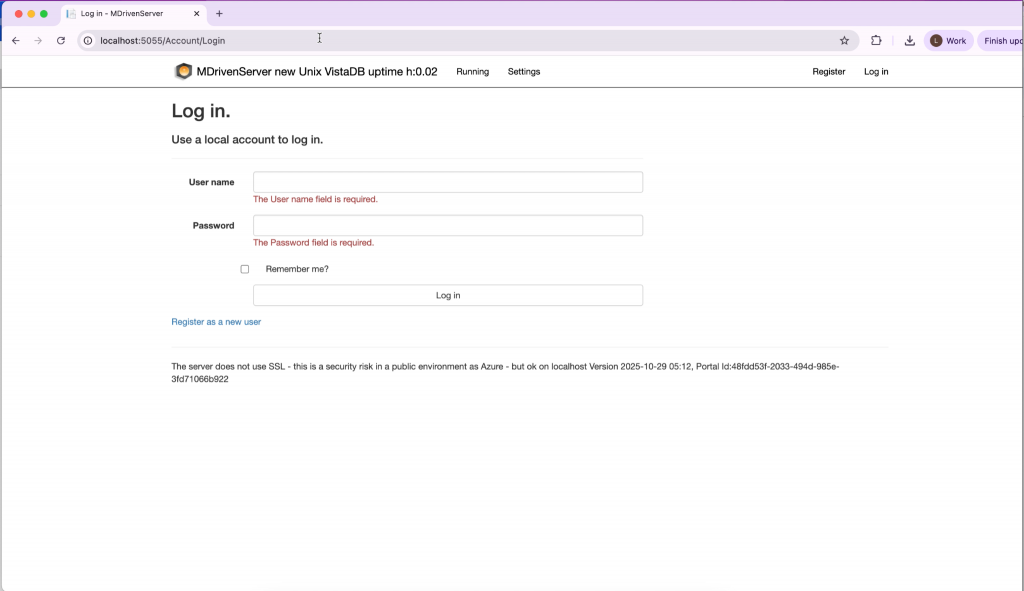
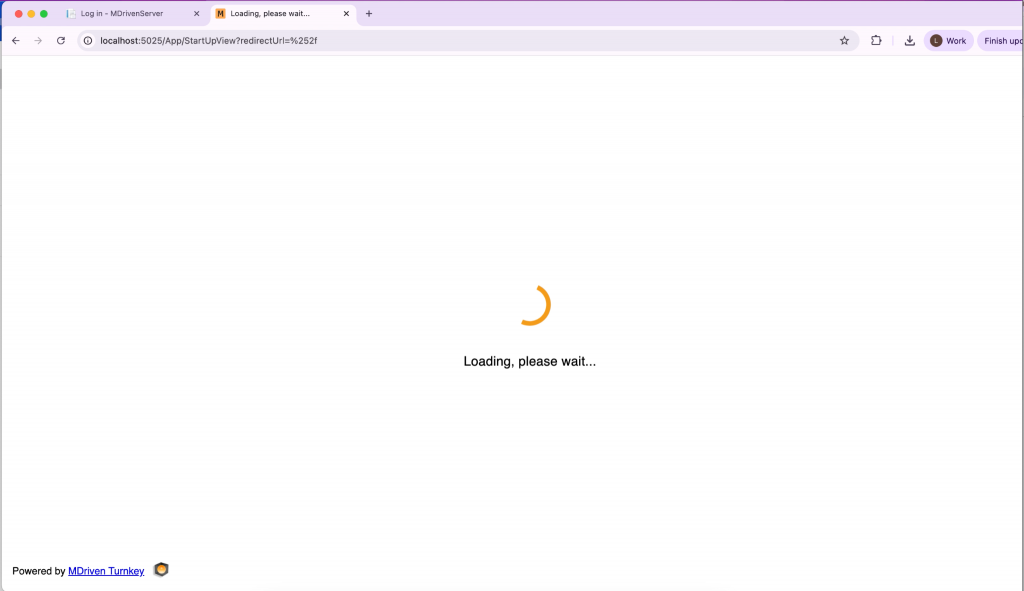
MDriven Turnkey when it has successfully started.
Now, you can go ahead and upload a model using MDriven Designer to fully verify if the Turnkey server is running as expected (not handled in this article).
Additional Material : Howto Upload Your First Model – MDriven Designer + MDriven Turnkey +MDriven Server on MacOs.