In Part 2, we replaced a task’s free-text status with a linked Status class to provide a controlled list of choices. In this guide, we take the next step by implementing an MDriven state machine workflow to give those values a defined sequence. Now a task will begin as Pending, move to OnGoing when work starts, and reach Complete when it is finished. We will also add a due date and use OCL to calculate whether unfinished work is overdue.
The result is a to-do app with two useful rules built into its model: how work progresses, and when it needs attention.
What We Are Building
Our task lifecycle is deliberately small:
Initial → Pending ──StartTask──→ OnGoing ──CompleteTask──→ Complete
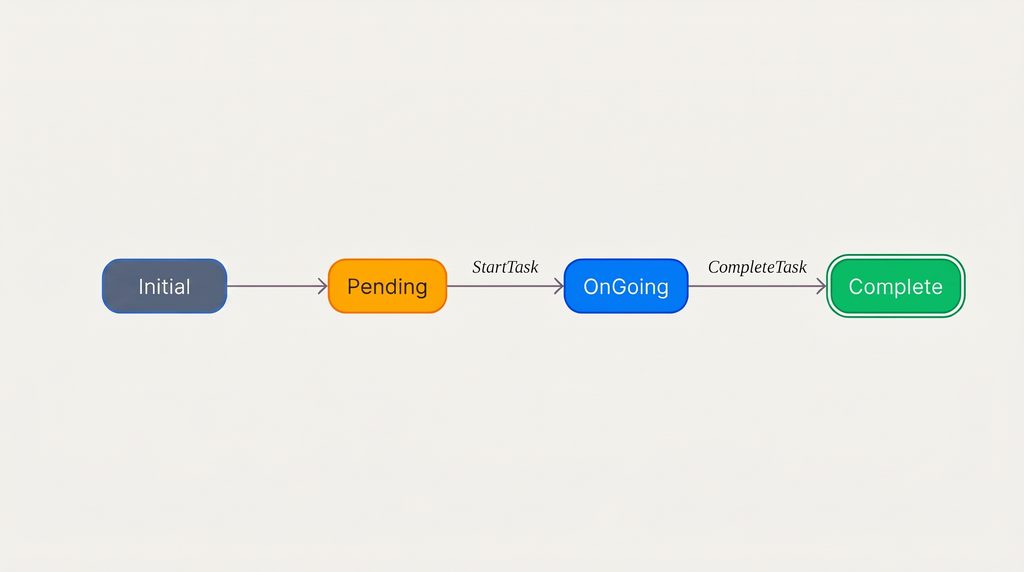
We will configure an MDriven state machine workflow for the lifecycle, a nullable DueDate attribute for the deadline, and a derived Boolean named IsOverDue for the calculation.
Overdue is separate from the lifecycle. A task can be OnGoing and overdue at the same time. Completing it ends the work and clears the overdue indicator.
Step 1: Give Task a State Machine
Add a state machine attribute to Task using Designer’s state machine workflow. In our model, the attribute is named State.
Open its state diagram and create three states:
- Pending: work has not started.
- OnGoing: work is in progress.
- Complete: the task is finished.
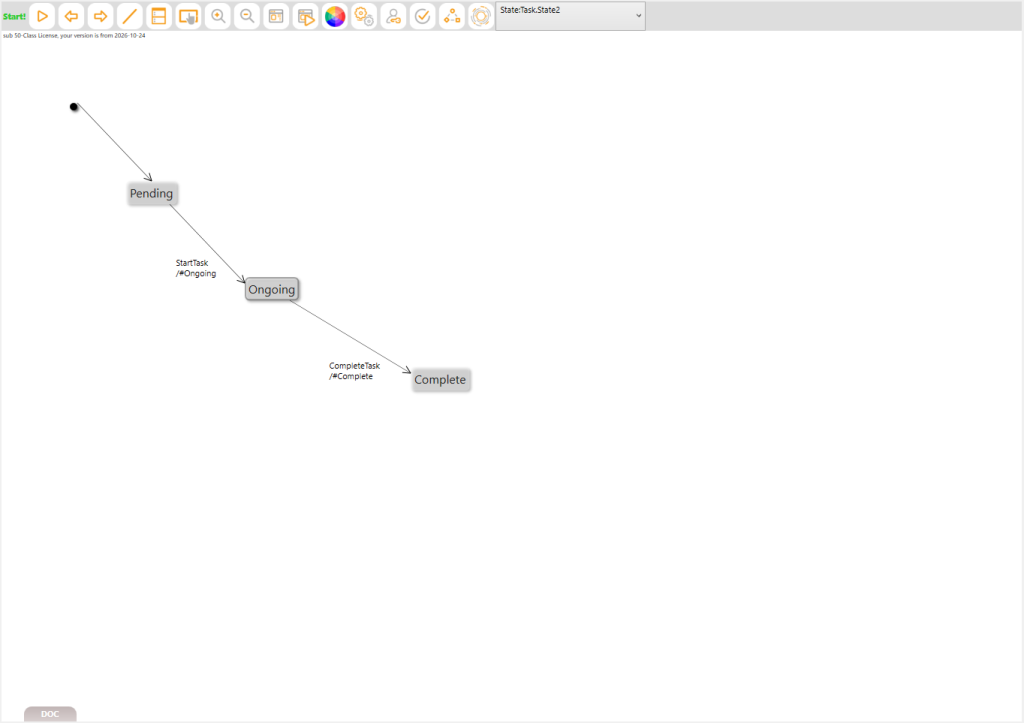
The Different States of a Task
Adding State Machine
Connect the initial node to Pending. This defines the starting state for a newly created task. Then draw the two transitions and assign a separate trigger to each:
| From | Trigger | To |
|---|---|---|
| Pending | StartTask | OnGoing |
| OnGoing | CompleteTask | Complete |
A trigger becomes a method on the class. Calling StartTask requests the first transition; calling CompleteTask requests the second. The diagram defines which path each method takes. For a deeper look at the underlying mechanics, see the MDriven UML State Machines Guide.
For this first workflow, leave guards and transition effects empty. The transition’s target already determines the destination. You do not need an effect such as #OnGoing or #Complete to set it.
We are leaving reopening out of this version. There is no backward transition from Complete and no direct path from Pending to Complete.
Step 2: Refresh AutoForms and Try the Transitions
Right-click the class diagram background and select AutoForms → Create/Refresh AutoForms. Save the model, then launch the Prototyper.
Create a task and check its State. It should begin as Pending. Select it and choose Start Task; its state should change to OnGoing. Choose Complete Task to finish it.
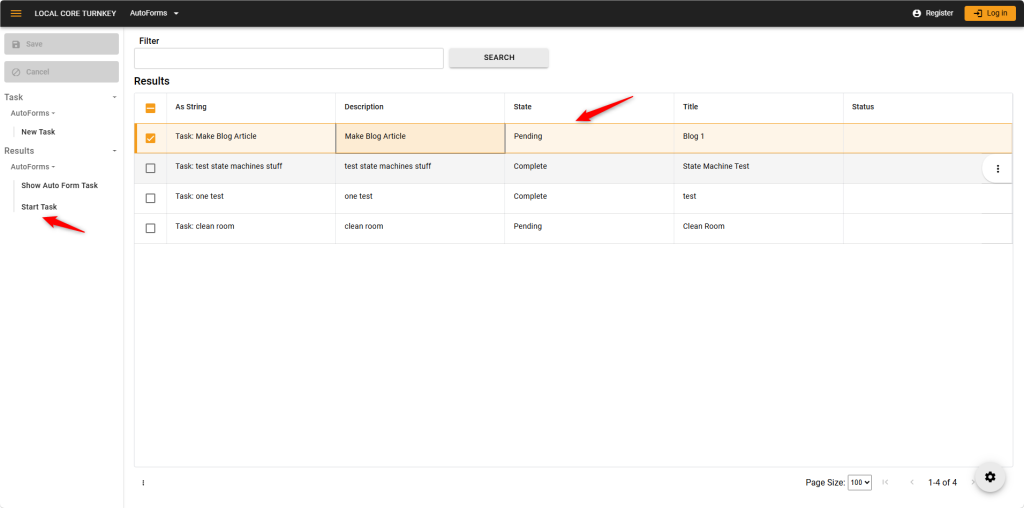
Pending Task
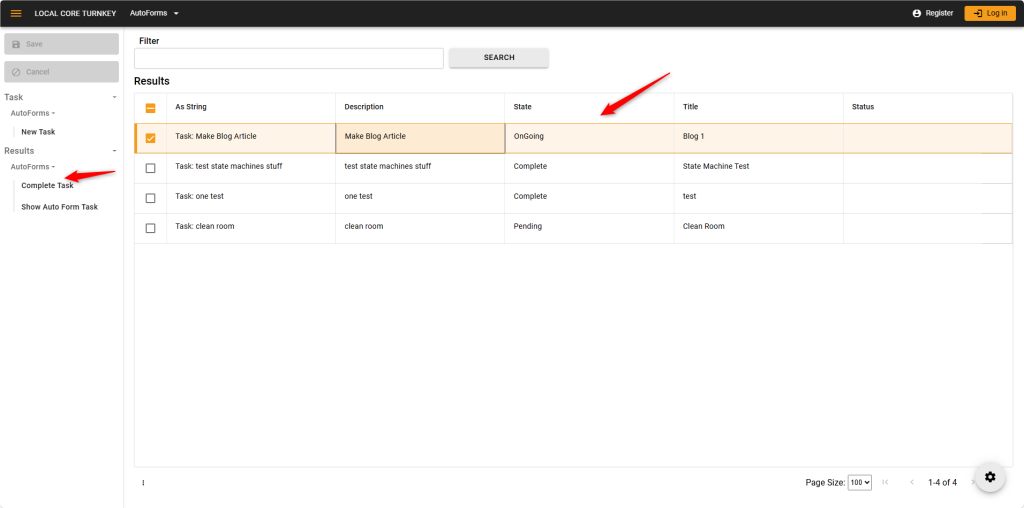
Ongoing Task
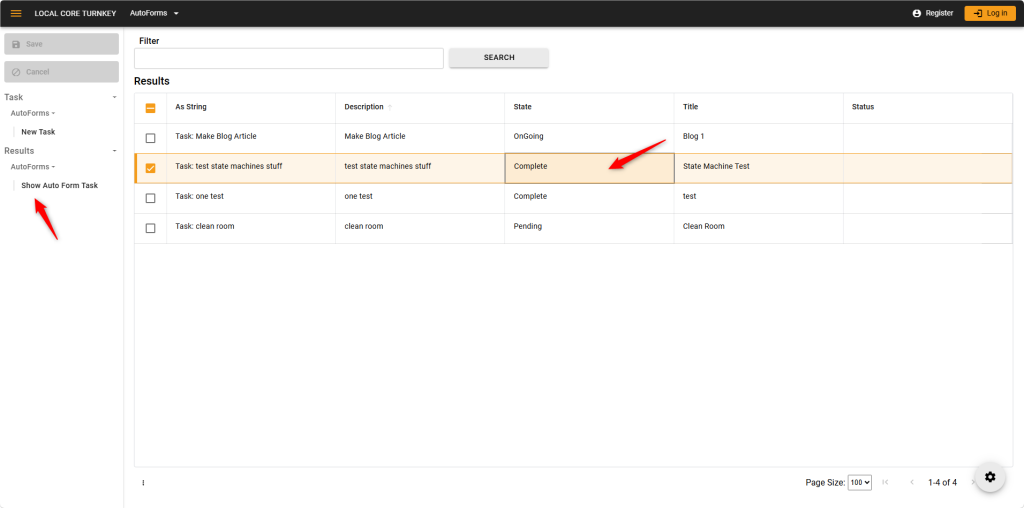
Completed Task
Change Task Status Using State Machine
The generated interface presents the trigger actions appropriate to the selected task. Test a task in each state rather than relying on the diagram alone.
Step 3: Add an Optional Due Date
Add an attribute named DueDate to Task with these settings:
| Setting | Value |
|---|---|
| Type | DateTime |
| Allow NULL | True |
| AttributeMode | Persistent |
Designer displays this as DateTime?. Allowing NULL means a task can exist without a deadline.
Refresh AutoForms again. The generated task interface now includes Due Date. Try entering a date, clearing it, and saving the task.
For this application, we compare calendar dates. A task due today is still on time, regardless of the time of day. The deadline is passed when its date is earlier than today.
Step 4: Calculate IsOverDue with OCL
Add a Boolean attribute named IsOverDue and set AttributeMode to Derived.
This value answers a question about the task. Users do not enter it themselves. Its answer comes from the due date and the current state.
Enter this expression in DerivationOCL:
if self.DueDate->isNull then
  false
else
  (self.DueDate.date < DateTime.Today)
  and not self.oclIsInState(#Complete)
endif
The expression reads in three parts:
- If the task has no due date, return false.
- Otherwise, compare the date portion of its deadline with today.
- Return true only if that deadline has passed and the task is not Complete.
self means the current Task. The .date operation removes the time portion from the deadline. oclIsInState(#Complete) checks whether the task has reached the Complete state.
Open the OCL editor to validate the expression, apply it, and refresh AutoForms. The generated interface displays Is Over Due as a checkbox indicator alongside the due date and state.
Derived attributes keep calculations in the model and track changes to the model values they use. For more on how dependencies work with calculated values, consult the MDriven Derived Attributes Documentation.
Step 5: Check the Overdue Rule in the App
Use a few tasks to verify the rule behavior:
| Due Date | State | Expected IsOverDue |
|---|---|---|
| Empty | Pending or OnGoing | False |
| Before today | Pending or OnGoing | True |
| Today | Pending or OnGoing | False |
| After today | Pending or OnGoing | False |
| Any date | Complete | False |
Completing a task takes precedence over a past-due date: when an overdue task moves to Complete, the overdue indicator clears immediately. This tightly couples the workflow and the business rules.
Step 6: Retire the Old Status Lookup
With the MDriven state machine workflow handling task progress, the old status dropdown is redundant.
Remove the Task–Status association and the Status class, then refresh AutoForms.
After the cleanup, inspect generated views, actions, and navigation for obsolete references to the removed class.
The finished task model contains:
| Attribute | Purpose |
|---|---|
| Title | Task name |
| Description | Task details |
| State | Lifecycle managed by the state machine |
| DueDate | Optional saved deadline |
| IsOverDue | Boolean derived with OCL |
It also contains the StartTask and CompleteTask trigger methods.
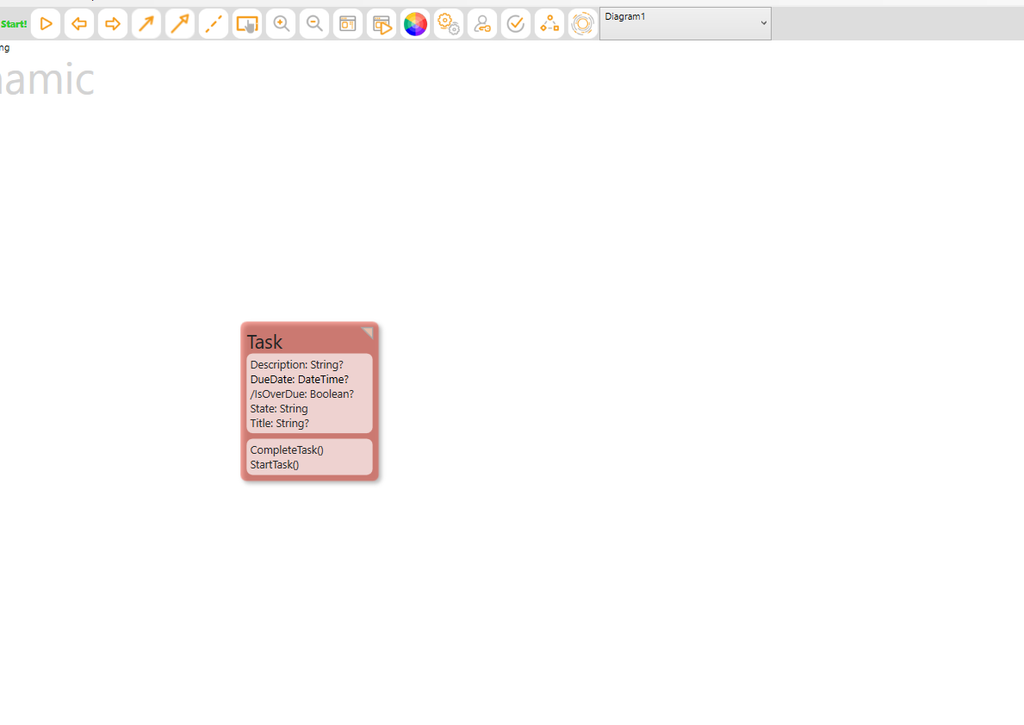
The Updated Model and Attributes
The Finished Application
The final interface brings the workflow and calculation together. Select a task, trigger an available transition action, and observe its state change. Assign a past deadline to an unfinished task, and the overdue indicator flags it. Complete that task, and the indicator clears.
Our model now defines both a task’s allowed progress and a robust rule for managing deadlines. You can easily add further enhancements—such as reopening completed work or requiring validation before transitions—using guards and additional transitions.