Building a relational model in MDriven turns a simple to-do app into something closer to real software. In this Part 2, you’ll take the to-do list you built in Part 1 and replace its plain-text Status field with a proper linked class — and watch MDriven turn that change into dropdowns and full management screens automatically, with no manual UI work.
Part 1 got you a working app in three steps: a Todo class with Title, Description, and Status attributes, wired up to a fully functional UI using MDriven’s AutoForms. No hand-built screens, no manual wiring — just a model and a few clicks.
But that simple Status field has a problem: it’s just a string. Nothing stops someone from typing “In Progress” today, “in progress” tomorrow, and “WIP” the day after. Nothing enforces which statuses are actually valid, and there’s no way to attach extra information to a status — like a color, a sort order, or whether it’s still active — without bolting on more string logic.
This is exactly the kind of problem a relational data model is designed to solve, and this article walks you through building one directly into your MDriven app.
Why a Relational Model in MDriven Matters
Along the way, you’ll:
- Rename
TodotoTask, a one-field change that reflects how far the model has grown since Part 1. - Introduce a dedicated
Statusclass, so valid statuses become records instead of guesses. - Connect
TaskandStatuswith a UML association, letting MDriven manage the relationship — and the underlying data integrity — for you. - Watch the UI adapt automatically, as MDriven turns that free-text field into a dropdown and generates full CRUD screens for managing statuses, with zero manual UI work.
By the end, you’ll have a small but meaningfully more robust application — and a clear look at how a well-built relational model in MDriven pays off almost immediately in the generated UI.
Step 1: Rename Todo to Task
Before adding anything new, let’s start with a small but meaningful change: renaming the Todo class to Task.
You can double-click on the class name and start typing, or you can also type the name on the right-hand side panel where it has the text Name.
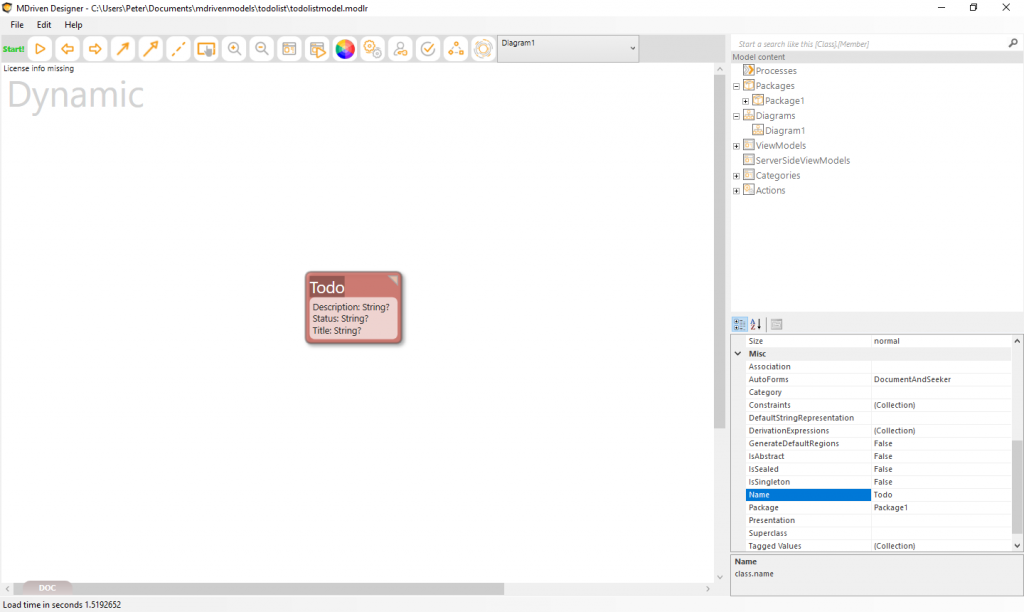
- Open the MDriven Designer with your Part 1 model (
todolistmodel.modlr). - Select the
Todoclass on the diagram. - In the property grid on the right, find the Name field under Misc, and change it from
TodotoTask. - Press
Enter— the class box on the diagram immediately updates to displayTask.
That’s it. One field, one change.
Note: MDriven propagates the rename everywhere the class is used behind the scenes — AutoForms, ViewModels, and any associations you add later will all reference
Taskautomatically. There’s no manual find-and-replace across the model, and nothing to break.
With the rename done, your diagram now shows a single Task class holding Title, Description, and Status, ready for the real refactoring work: replacing that Status string with a proper domain class.
Step 2: Add the Status Class to the Model
Now let’s give Status a home of its own instead of leaving it as a loose text field on Task.
- Right-click anywhere on the diagram background to open the context menu.
- Click Add Class.
- Name the new class
Status. - Inside
Status, add a single attribute:StatusName(String).
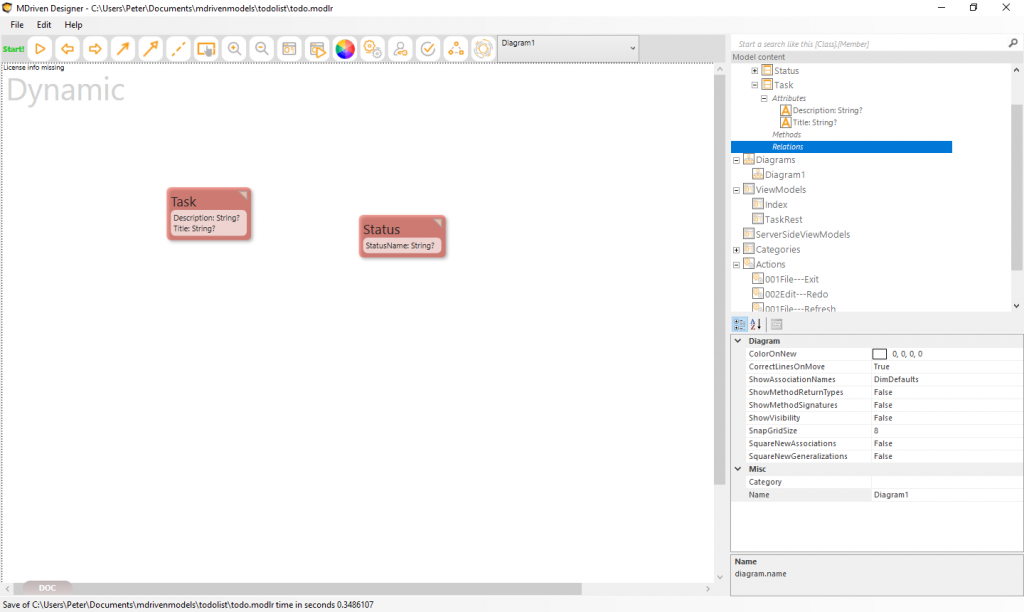
Your diagram now has two classes: Task, still holding its original Title and Description attributes, and a brand-new Status class sitting on its own.
Key Concept: Treating a lookup value like status as its own domain class — rather than a string on
Task— is a small shift with a big payoff. OnceStatusis a first-class entity, you can extend it later with things like a color for UI badges, a sort order for displaying statuses in a sensible sequence, or an “active” flag to retire old statuses without deleting historical data. None of that is possible with a plain string field.
At this point, Status isn’t connected to Task yet — it’s just sitting there as an independent class. That’s the next step: drawing the relationship that ties them together.
Step 3: Establish the Relational Association
With both classes on the diagram, it’s time to connect them.
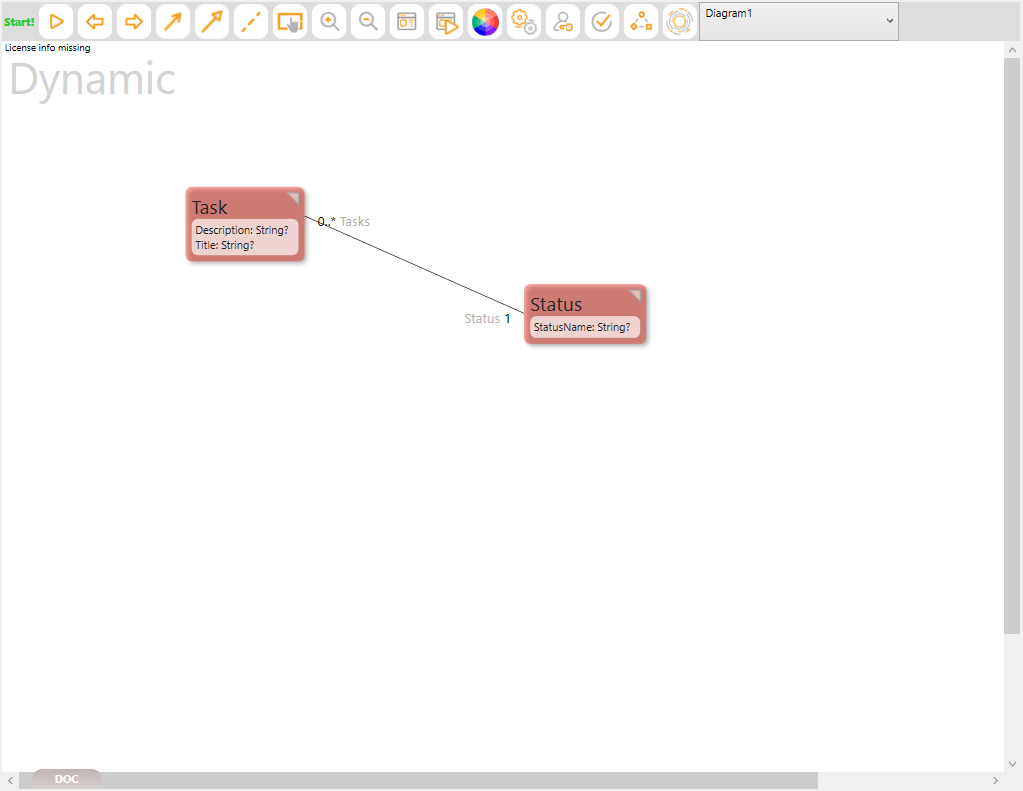
- Select the Association tool from the diagram toolbar.
- Click on
Task, then drag and drop ontoStatusto draw a line between the two classes. - Set the multiplicity to
1to0..*:- The
Statusend gets a multiplicity of1— eachTaskreferences exactly oneStatus. - The
Taskend gets a multiplicity of0..*— eachStatuscan be assigned to any number ofTaskinstances, including none at all.
- The
That’s the entire relationship, defined with one line and two numbers.
Key Concept: This single line does the work that would otherwise mean writing foreign keys, join logic, and referential integrity checks by hand. MDriven reads the UML association directly and manages all of that relational plumbing behind the scenes — the model is the database design.
Save your model (Ctrl + S), and you’re ready to see what MDriven does with this new relationship in the UI.
Step 4: Refresh AutoForms & Adapt the UI
Here’s where the payoff of relational modeling becomes visible. Right-click the diagram background, navigate to AutoForms, and click Create/Refresh AutoForms.
MDriven regenerates your UI based on the updated model, and three things change automatically:
- Lookup Selector: The
Statusfield on theTaskedit screen is no longer a free-text box — it’s now an interactive dropdown, populated from yourStatusrecords. - Reference Data UI: MDriven creates full CRUD (Create, Read, Update, Delete) screens for
Statuson its own, so you can manage the list of valid statuses independently of any task. - Master-Detail Layouts: A
Statusview now shows, alongside its own details, a nested list of everyTaskcurrently assigned to it.
None of this required touching a single line of UI code. You changed the model; the interface followed.
Step 5: Run, Seed Data, and Test
Time to see it all working. Press Ctrl + S to make sure everything’s saved, then click the green Start! button to launch the Prototyper.
- Seed Data: Open the
Statusview first and create a few default records — Pending, On Going, and Complete work well as a starting set. - Assigning Statuses: Open a
Taskform. Where you once typed a status by hand, you’ll now find a dropdown listing the records you just created — pick one to assign it. - Verification: Open the
Statusmaster-detail view and confirm that each status correctly lists the tasks assigned to it. Try reassigning a task’s status and watch the lists update in real time.
Take a moment to try breaking it — there’s no longer a way to assign a task a status that doesn’t exist, because the dropdown only offers valid Status records. That’s the data-integrity win, made visible.
Add Status default records
Add New Task
Key Takeaways
- Safe Renaming: Renaming a class —
TodotoTask— is a single property change that propagates cleanly across the whole model. No broken references, no manual cleanup. - Model-Driven Flexibility: Refactoring a domain model in MDriven doesn’t mean writing database migrations or SQL scripts. Change the model, and the underlying structure follows.
- Automatic UI Adaptation: The interface isn’t something you build once and maintain separately — it evolves naturally alongside structural changes in the model itself, from a plain text field to a fully validated dropdown with zero manual UI work.
In Part 3, we’ll take this further with OCL (Object Constraint Language) to compute derived values like whether a task IsOverdue, and look at replacing manual status selection with explicit UML State Diagrams and formal state transitions.